
This page provides everything you need to update the firmware on your Mini OLED Display (RLVBDSP06) and understand what has changed between versions.
It includes:
- Firmware update instructions to guide you through the update process.
- Release notes outlining new features, improvements and bug fixes for each version.
Firmware updates may introduce new features, improve performance, or resolve known issues. We recommend keeping your device up to date to ensure the best performance and compatibility.
The firmware update process is done via the connected VBOX Video HD2 unit.
Equipment List
- An SD card (FAT32 formatted)
- A computer to download and copy the firmware file
- VBOX Video HD2 unit
- VBOX Video HD2 power cable
- Suitable power supply
- DSP06 Mini OLED Display
- Download the Mini OLED Display firmware upgrade file and unzip it.
(Your unit must be registered to receive the required login details for the download. You can register it here.) - Place the OLED Display upgrade file in the root directory of an SD card (not in the media or any other folder).
- Insert the SD card into the HD2 unit.
- Connect the Mini OLED Display flying lead to the HD2.
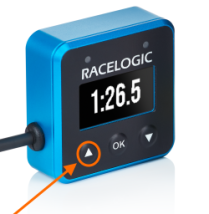
- Press and hold the Up button (highlighted button in the image below) on the Mini OLED Display while you connect the power cable to the Video HD2 unit to apply power.
- Wait for the bootloader screen to display a progress bar for the file transfer and installation of the new firmware.
- When the process is complete, the Mini OLED Display will restart by itself.
IMPORTANT
Regardless of the Screen Orientation on your OLED Display, you must press and hold the following button to start the firmware upgrade process:
NOTE
If you want to check which firmware version your OLED display is currently running, go to MENU → ABOUT.